Git Basics: A Beginner's Guide to Essential Commands
Git is a version control system that allows you to track changes to your files and collaborate with others.
I know you may not understand the term “version control system”.
Let’s try to understand this with a simple analogy. You may have played video games in your childhood or still do today.
whenever you cross some level or made some progress in the game you get checkpoints in your game, you can use these checkpoints to save the game. so that when you start playing that game again you can continue from that checkpoint or if you wish to go back and play that level just for fun you can also do that.
we can achieve these things in software development using git. just like playing game, we can write code and after you feel that you made some progress you can create a checkpoint there and all the checkpoints will be maintained so that you can go back and forth. so all the code history will be maintained you can properly track the code.
What Actually is tracking the code?
Let’s say you created a index.js file, Initially file is empty so you write some code.
So the diff is what is before and after you write some code.
console.log("Hello World");
+ console.log("Hello World");
console.log("Hello World");
const fname = "manoj";
+ console.log("Hello World");
+ const fname = "manoj";
console.log("Hello World");
const fname = "";
+ console.log("Hello World");
+ const fname = "manoj";
- const fname = "manoj";
+ const fname = "";
In this way, code will be tracked. But where to store these changes ? if you want you can store these in database like PostgreSQL, MongoDB etc.. but the best way to do is create a folder within that project and track changes in that folder.
But the main condition is that user will never touch that folder, By default it will be a hidden folder but with some settings you can see that folder and can even modify it but it is not recommended.
Where Does Git Store All This History?
Inside your project, Git creates a hidden folder called .git.
This folder contains:
all commits
all file history
all configuration
Git Terminology
| Normal Word | Git Word | Meaning |
| Folder | Repository (Repo) | A project tracked by Git |
| Checkpoint | Commit | A saved snapshot |
| Alternative timeline | Branch | Parallel line of work |
| Timeline pointer | HEAD | Where you currently are |
Check If Git Is Installed
Open your terminal and run:
git --version
If Git is installed, you’ll see a version number.
Repository: Your Tracked Project
A repository is simply a folder that Git is tracking.
Not every folder on your system is a Git repository.
Only folders you explicitly initialize will be tracked.
To check the status of a folder:
git status
If Git says “not a git repository”, it means tracking hasn’t started yet.
Configure Your Identity
Every commit stores who made the change.
Set your name and email:
git config --global user.name "Your Name"
git config --global user.email "your-email@example.com"
Check your configuration:
git config --list
Note: Use the same email you use on GitHub.
Creating Your First Git Repository
Let’s start from scratch.
git init
This does two things:
Turns the folder into a Git repository.
Creates the hidden
.gitdirectory.
Now Git is watching your project.
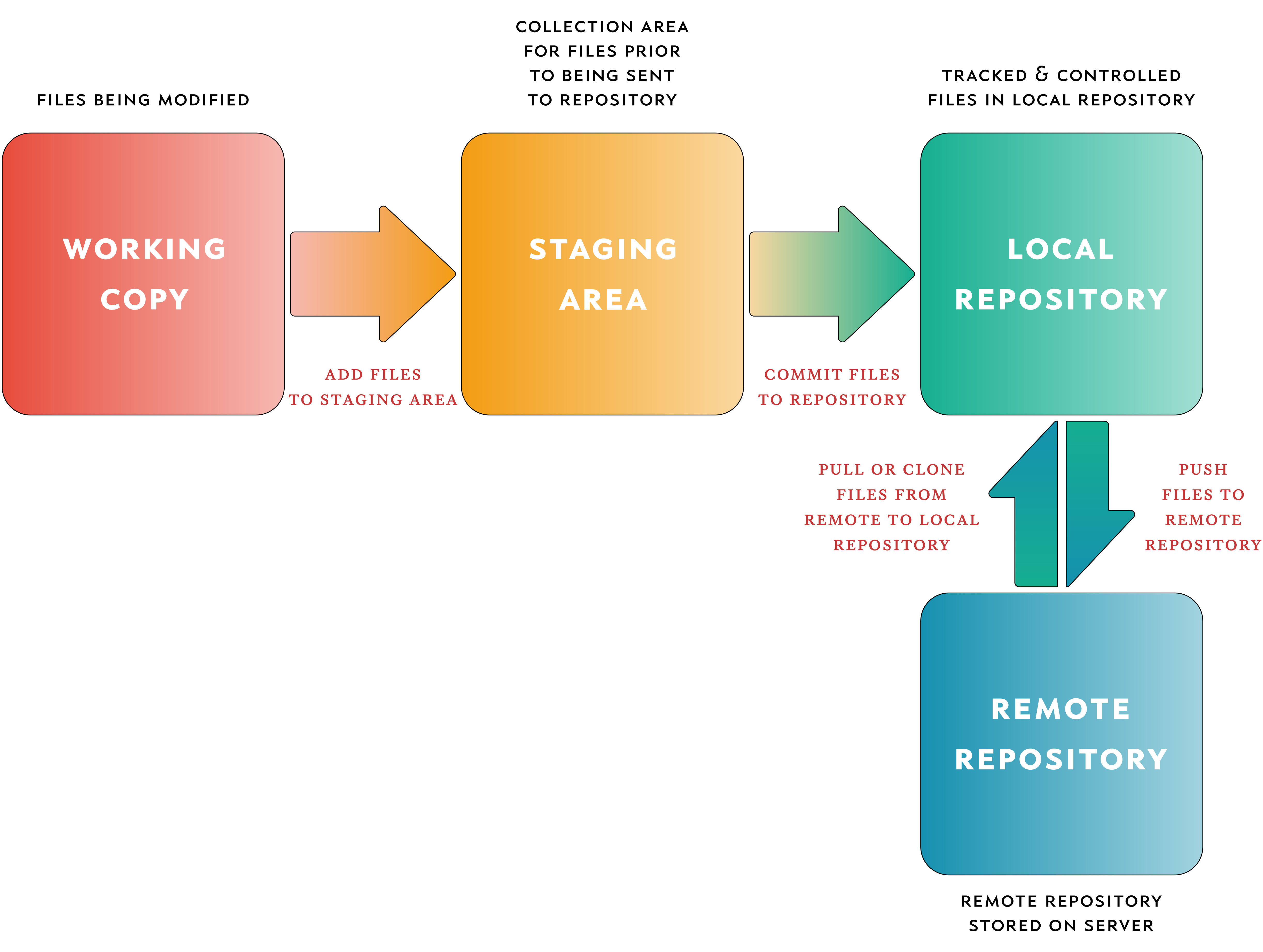
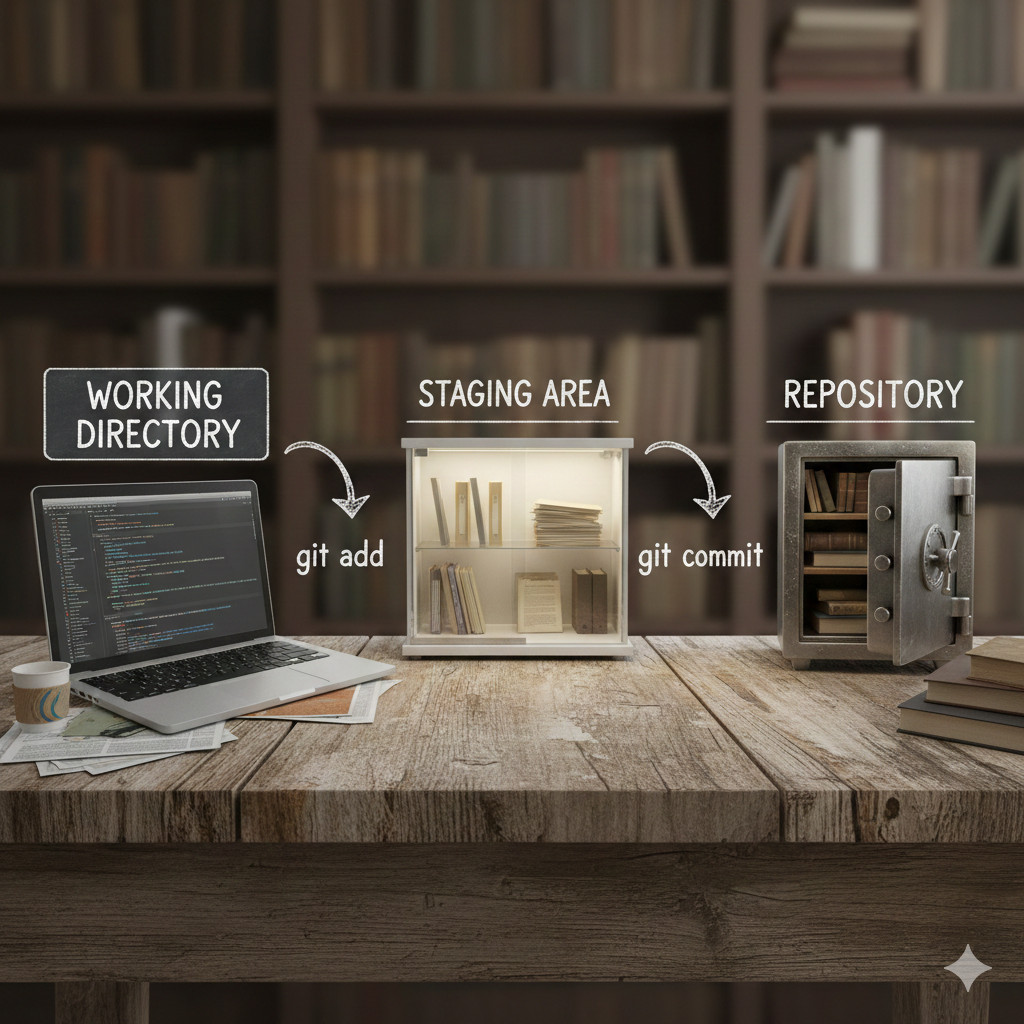
Git Workflow
Git always follows this flow:
Working Directory → Staging Area → Repository.
Stage: Preparing Changes
After creating or editing files, Git doesn’t track them automatically.
You must stage them.
git add index.js
Or stage everything:
git add .
Check status:
git status
Now files are in the staging area, ready to be committed.
Commit: Creating a Checkpoint
A commit saves staged changes permanently.
git commit -m "Add initial hello world code"
Think of commits as clean, meaningful checkpoints.
Viewing History with Git Log
To see all commits:
git log
Cleaner version:
git log --oneline
This shows:
commit ID
commit message
commit order
You’re literally viewing your project’s timeline.
Ignoring Files with .gitignore
Some files should never be tracked:
node_modules
.env
editor settings
Create a .gitignore file:
node_modules
.env
.vscode
Now Git will ignore them permanently.
Complete Beginner Git Flow
Here’s the full journey:
git init
git add .
git commit -m "Initial commit"
git log
That’s it.
You’ve officially used Git the right way.
